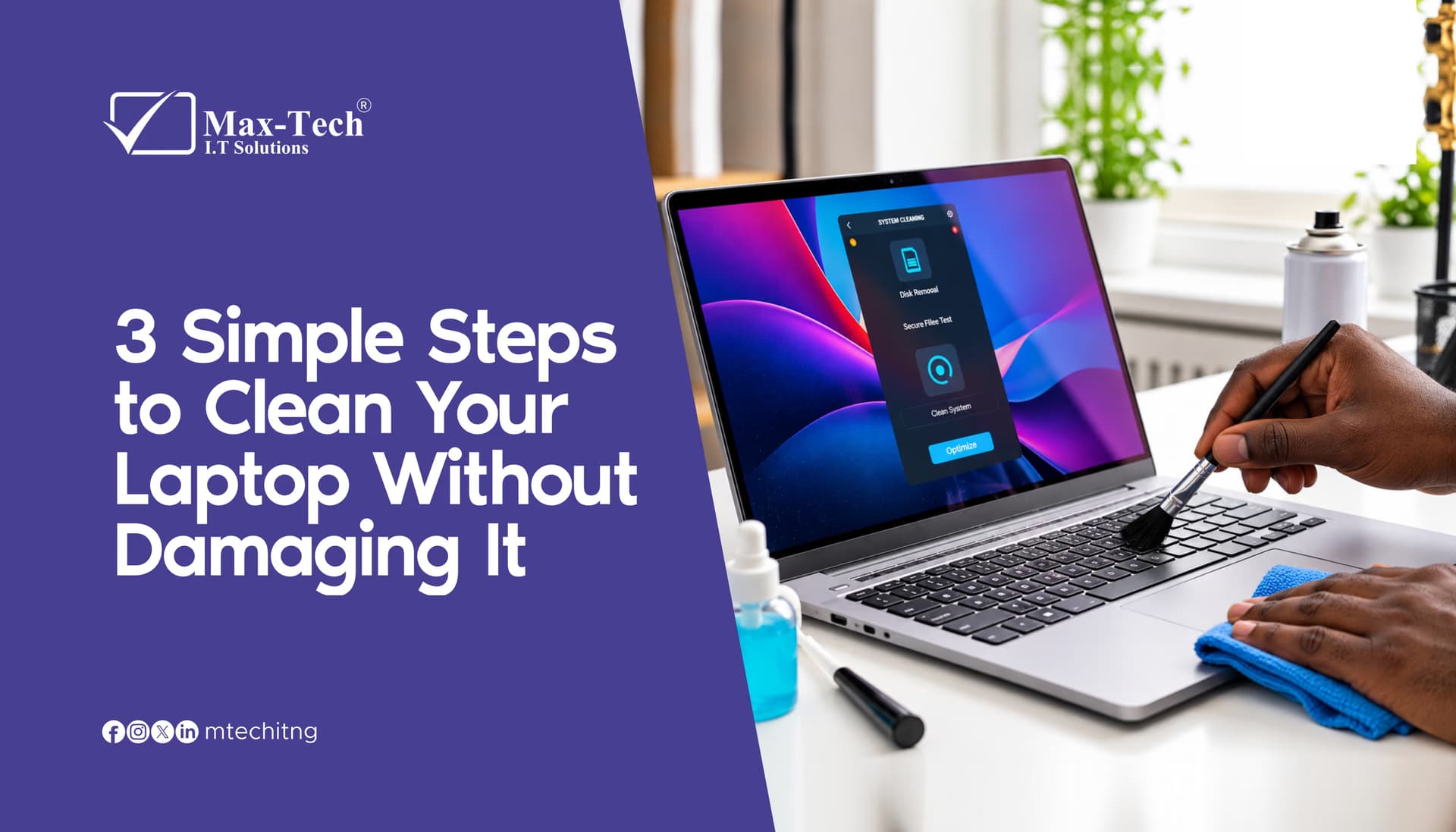

Is your laptop running slow or getting hot?
Before you blame the software, check for dust. Buildup in the vents and keyboard is one of the most common causes of overheating and slowdowns, and a safe cleaning routine takes about ten minutes.
Before you start: Power off the laptop, unplug the charger, and remove any peripherals.
Step 1: Clean the screen
Start with a dry microfiber cloth. For stubborn smudges, dampen the cloth slightly with water. Never spray liquid directly onto the screen, and avoid paper towels (they scratch) and glass cleaners like Windex, which can damage the coating.
Step 2: Clean the keyboard and body
Turn the laptop upside down and tap gently to loosen crumbs. Use short bursts of compressed air between the keys, then wipe the keys and body with a microfiber cloth lightly dampened with 70% isopropyl alcohol. Keep moisture away from ports and gaps.
Step 3: Clear the vents
Blow short bursts of compressed air into the fan vents. Blocked vents trap heat, which makes your laptop slower and can shorten its lifespan.
Finish: Let everything dry completely before turning the laptop back on.
What not to do: Don't open the laptop for deep internal cleaning unless you know what you're doing. Internal components are delicate, and one wrong move can cause costly damage.
Still slow after cleaning?
If your laptop is still overheating or lagging, the cause could be something more serious, like failing hardware, a clogged fan, or software issues. At Max-Tech I.T Solutions, we help individuals and businesses keep their tech running smoothly. Drop a comment or send us a message describing what your laptop is doing, and we'll point you in the right direction.