
Why You Should Think Twice Before Sharing Your Email Address
Almost every website, online store, mobile app, and newsletter asks for your email address. While sharing it may seem harmless, it can expose you to unwanted marketing emails, promotional campaigns, spam, and potential privacy risks.
Once your email address is collected, you may have little control over how it is used or shared with marketing partners. Your address could also become exposed if a service experiences a data breach.
This is why protecting your email address is an important part of managing your digital privacy.
Apple offers a feature called Hide My Email, which allows you to use a randomly generated email address instead of revealing your personal email address to websites, apps, and other services. Messages sent to that address are forwarded to your chosen personal inbox, helping you maintain control over how your email address is shared.
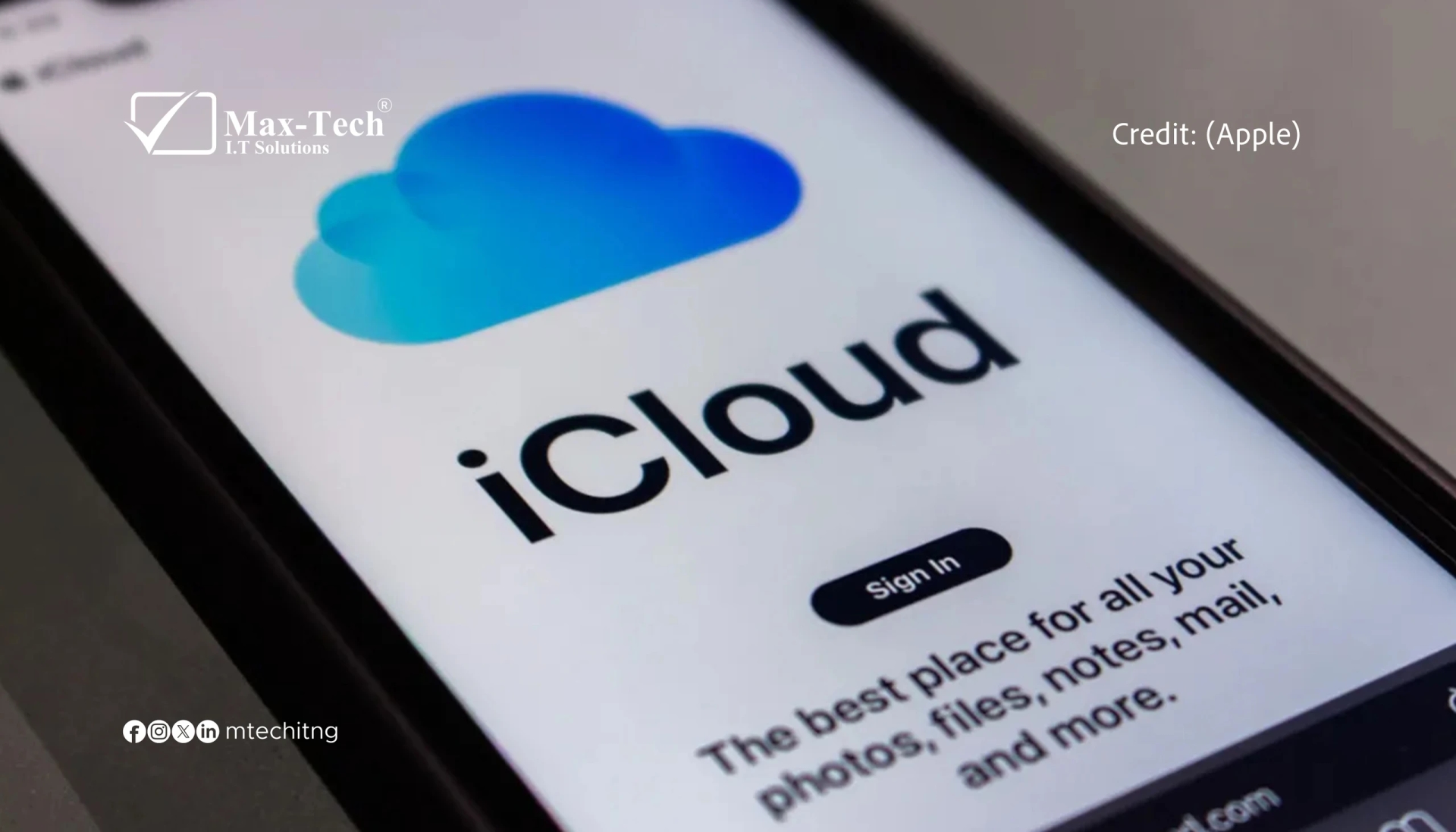
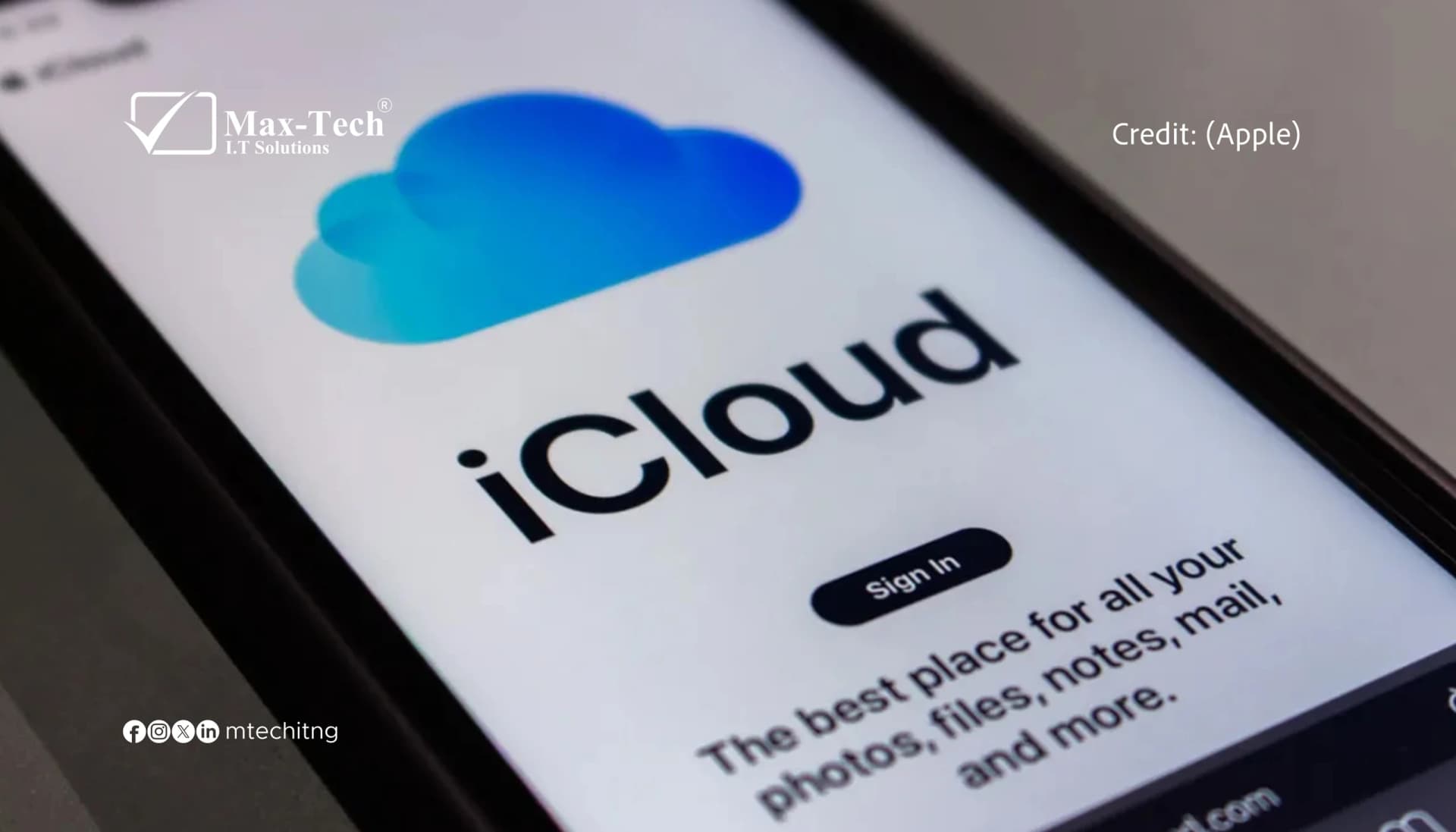
According to Apple’s official privacy information, Hide My Email is available through iCloud+ and can help you communicate without giving websites and apps your real email address.
What Is Apple Hide My Email?
Hide My Email is an Apple privacy feature that generates unique, random email addresses for you.
Instead of entering your regular email address when signing up for a newsletter, registering on a website, or using a supported app, you can use one of these alternative addresses.
For example, instead of giving an online store your personal address, you could use a randomly generated address such as random-example@icloud.com. This is only an illustration, not a real address generated by Apple.
Emails sent to your Hide My Email address are forwarded to your chosen personal email inbox. You can still receive messages without directly disclosing your primary address to the service.
You can also create different addresses for different websites or purposes, making it easier to manage your online subscriptions and identify which services have your contact details.
How Hide My Email Helps Reduce Spam
Hide My Email does not automatically block every spam message, but it gives you another way to manage unwanted email.
1. Keep your personal email address private
When registering on unfamiliar websites, joining mailing lists, or downloading online resources, you can use a Hide My Email address instead of your primary address.
This reduces the number of services that directly receive your personal email address.
2. Limit unwanted marketing emails
If an online service starts sending too many promotional emails, you can deactivate the Hide My Email address you used for that service.
Once deactivated, the address stops forwarding emails to you. This can be useful when you no longer want to receive messages through that particular alias.
3. Use separate addresses for different services
You can create different aliases for online shopping, newsletters, trial subscriptions, and other websites.
Keeping these addresses separate helps you identify which service an email address was created for and makes it easier to manage unwanted messages.
4. Reduce exposure when a service experiences a data breach
If a website storing your email address suffers a data breach, a Hide My Email alias can help keep your primary email address from being directly exposed through that particular record.
However, this is not a guarantee of complete anonymity or protection from every privacy risk. Your other personal information may still be exposed, depending on the service and the data involved.
How to Control and Manage Your Hide My Email Addresses
One of the most useful aspects of Hide My Email is that you can manage the addresses you create.
Apple provides controls for creating addresses, changing where messages are forwarded, and deactivating aliases you no longer need.
On your iPhone or iPad
- Open Settings.
- Tap your name at the top of the screen.
- Select iCloud.
- Tap Hide My Email.
- Select Create New Address to generate a new alias.
- Follow the instructions and give the address a label if prompted.
You can return to this section whenever you want to review your existing addresses or manage them.
On your Mac
- Open System Settings.
- Select your name in the sidebar.
- Open iCloud.
- Select Hide My Email.
- Create or manage your available addresses.
The exact menu labels may vary depending on your operating system version.
Through Apple’s official website
You can also manage Hide My Email through iCloud.com/icloudplus.
Sign in with your Apple Account and open Hide My Email. From there, you can create an address, assign a label, copy an existing address, and change its forwarding destination.
Apple requires two-factor authentication to create addresses through the iCloud.com interface.
How to stop receiving emails through an alias
If a service starts sending unwanted messages, open Hide My Email, select the relevant address, and choose the option to deactivate it.
After deactivation, emails sent to that address will no longer be forwarded to you. You can reactivate an address if you need it again, subject to Apple’s available controls.
Important: Deactivating an alias does not automatically unsubscribe you from the sender’s mailing list or erase information the website has already collected. It stops that alias from forwarding messages to your inbox.
For detailed instructions, visit Apple Support: Hide My Email on all your devices.
How to Sign Up for Apple Hide My Email
If you want to start using Hide My Email, follow these steps.
Step 1: Create an Apple Account
Visit Apple’s official account website:
Create an Apple Account if you do not already have one, and follow Apple’s verification and security instructions.
Step 2: Explore iCloud+
Visit Apple’s official iCloud+ page:
https://www.icloud.com/icloudplus
Hide My Email is an iCloud+ feature. You will generally need an eligible iCloud+ subscription or access through an eligible Family Sharing arrangement to use it.
Review the available plans, prices, and terms for your region before subscribing.
Step 3: Sign in and open Hide My Email
After confirming that your account has access to iCloud+, sign in and open Hide My Email from your Apple device or the iCloud+ website.
Step 4: Create your first alias
Generate a new email address and give it a label that helps you remember its purpose, such as “Online Shopping” or “Newsletters.”
Copy the address and use it when a supported website or service asks for your email address.
Step 5: Review your addresses periodically
Check your aliases occasionally. Deactivate those you no longer need, and keep the ones you still use active so you can continue receiving important messages.
For more information, read Apple’s official Hide My Email guide.
Hide My Email vs. Sign in with Apple
Apple also offers Sign in with Apple, which can let you create or access accounts on participating apps and websites without directly sharing your personal email address.
When available, you can choose to hide your email address, allowing Apple to provide a private relay address instead.
The two features are related but serve different purposes:
Hide My Email with iCloud+: Create and manage aliases for websites, newsletters, and other supported uses.
Sign in with Apple: Sign in to participating apps and websites using your Apple Account, with the option to hide your email address.
You can learn more at Apple’s official Sign in with Apple and privacy page.
Is Hide My Email Worth Using?
If you regularly register for online services, subscribe to newsletters, shop online, or prefer not to share your primary email address everywhere, Hide My Email is a useful privacy tool.
It gives you more control over the addresses you share, makes it easier to separate online services, and lets you deactivate aliases when they become unnecessary.
Remember that it is not a complete spam filter. You should still avoid suspicious links, use strong passwords, enable two-factor authentication, and be cautious about the information you provide to websites.
Final Thoughts
Your email address is an important part of your digital identity. Sharing it without considering the privacy implications can expose you to unwanted marketing and unnecessary risks.
Apple’s Hide My Email offers a practical way to reduce that exposure while allowing you to continue receiving messages through your regular inbox.
If you use an Apple device or are considering iCloud+, explore the feature through Apple’s official website and decide whether it fits your privacy needs.
At Max-Tech I.T Solutions, we encourage users to take practical steps toward safer, more private digital experiences. Protecting your email address is one small change that can make a difference in how you manage your online life.